Showing posts with label windows. Show all posts

Sunday, January 29, 2012

Create a Bootable USB Windows 7 using UltraISO

Want to create a bootable Windows USB flash drive to install Windows without using DVD? Do you still use the good old UltraISO software to burn ISO files to CD or DVD? Then you use the UltraISO software to create bootable USB flash drive with a few clicks.
We know that there are many free alternatives available to create to bootable Windows USB flash drive. Even one can use the Command Prompt to install Windows 7 or Windows 8 from USB flash drive. But the purpose of this post is to let the UltraISO users know about the a superb functionality present in their favorite ISO burning software.
Here is how to use UltraISO software to create bootable USB drive:
Step 1: Download and install UltraISO software on your PC
Step 2: The next step is to run UltraISO with admin rights. Right-click on the UltraISO software shortcut on the desktop or Start menu entry, and select Run as administrator option. 


Step 3: In the home screen, click File > Open option to browse to your Windows 7 or Windows 8 ISO file.


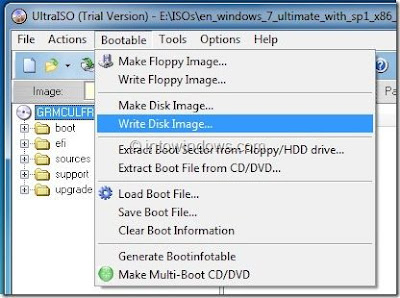
Step 4: Next, in the home screen of UltraISO, click on Bootable menu and then clickWrite Disk Image option to launch Write Disk Image dialog box.


Step 5: In the Write Disk Image dialog, select the Disk Drive as your USB flash drive, select the write method as USB-HDD before hitting the Format button. It will then launch Format Removable Disk dialog, where you need to simply click Start button to begin formatting the flash drive. Please backup all data from the USB device before hitting the Format button.


Step 6: Once the format in done, click Write button and then click Yes for the warning prompt to start the process. When the writing is finished, you will see Burn Successful message event list. Close UltraISO software and connect your USB to a machine to start installing Windows.


Test the bootable USB before using it to install Windows.


Saturday, January 21, 2012

20 Windows Keyboard Shortcuts You Might Not Know


Mastering the keyboard will not only increase your navigation speed but it can also help with wrist fatigue. Here are some lesser known Windows shortcuts to help you become a keyboard ninja.

Global Windows Shortcuts
Win+1, 2, 3, 4, etc. will launch each program in your taskbar. It is helpful then to keep your most used programs at the beginning of your task bar so you can open them one right after another. This also works in Windows Vista for the quick launch icons.
Win+Alt+1, 2, 3, etc. will open the jump list for each program in the taskbar. You can then use your arrows to select which jump list option you want to open.
Win+T will cycle through taskbar programs. This is similar to just hovering over the item with your mouse but you can launch the program with Space or Enter.
Win+Home minimizes all programs except current the window. This is similar to the Aero shake and can be disabled with the same registry key.
Win+B selects the system tray which isn’t always useful but can come in very handy if your mouse stops working.
Win+Up/Down maximizes and restores down the current window so long as that window has the option to be maximized. It is exactly the same as clicking on the middle button on your windows.
Alt+Esc is like Alt+Tab but switches windows in the order they were opened and does not have the fancy window preview overlay.
Win+Pause/Break will open your system properties window. This can be helpful if you need to see the name of a computer or simple system statistics.


Ctrl+Esc can be used to open the start menu but will not work as a Windows key replacement for other shortcuts.
Ctrl+Shift+Esc will open the task manager without needing to hit Ctrl+Alt+Del first.
Alt+Space will open the window system menu which can be used to maximize (x), minimize (n), close (c), or move (m) the window which can be especially helpful if your window is somehow off-screen. This shortcut can also be helpful with windows that don’t close with the Alt+F4 shortcut such as the command window.
Windows Explorer Shortcuts
Here are handy shortcuts built into Windows Explorer which may have similar features in other programs too.
Alt+Up will navigate up one folder level since the up arrow on the menu bar was removed in Windows Vista. Alternatively, you can also make Backspace go up one folder level with a handy AutoHotKey script.
Shift+F10 opens the contextual or “right click” menu for a file/folder. This can be very handy for speed especially if you know which option you want to select. Look for an underlined letter in each option to know which letter you can press for faster access.
Shift+Del deletes a file without sending it to the recycle bin because who wants to empty their recycle bin anyway?
Ctrl+Shift+N creates a new folder in your current directory.
Alt+Enter opens the file properties so you can view file size, sharing settings, and creation date.
F2 renames a file or folder.
F3 will open explorer and select the search bar. If you already have an explorer window open it will highlight the search bar. In some programs it will also open the search dialog to search within that program.
F6 cycles objects in the current window. In explorer this will cycle between the location bar, options bar, left pane, and right pane. It also works with varying success in other programs.
F10 toggles the file menu in explorer.